FileOrganizer
A downloadable tool for Windows
Tired of a messy Downloads folder?
FileOrganizer is a minimalistic, lightning-fast utility designed for developers, artists, and digital creators who want to automate their file routing without heavy and bloated software. Why use FileOrganizer?
How to use:
- Instant & Smart: Cleans up old files on launch and routes new ones the second your browser finishes downloading them.
- Resource Friendly: Consumes only ~10MB of RAM. Your system won't even notice it's running.
- 100% Private: Works fully offline. No telemetry, no data collection.
- Total Control: Features smooth animated status alerts and a one-click built-in Kill Switch to completely stop the background process.
- Enter the extension (e.g.,
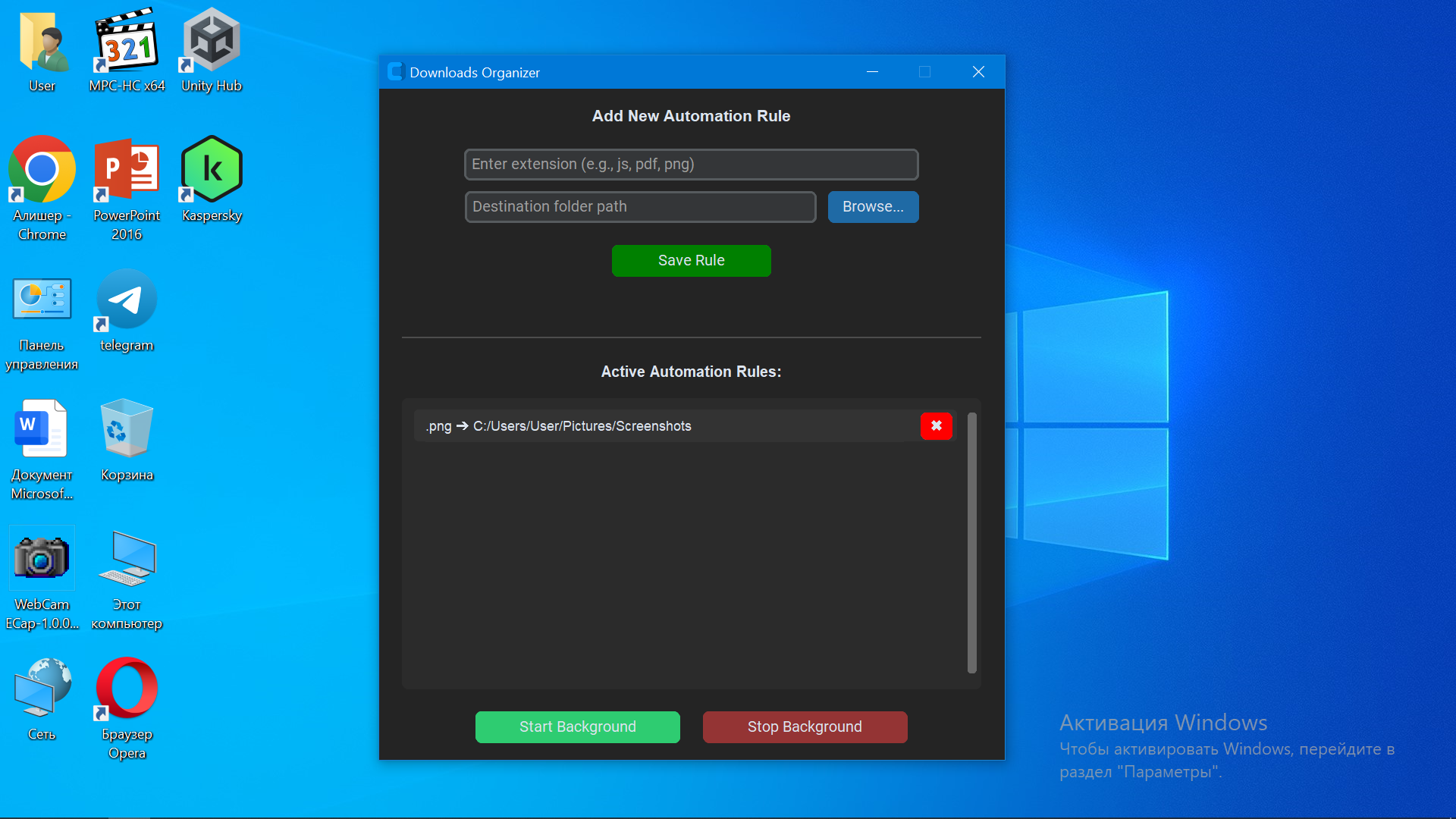
png,js,- Select or paste your target destination folder.
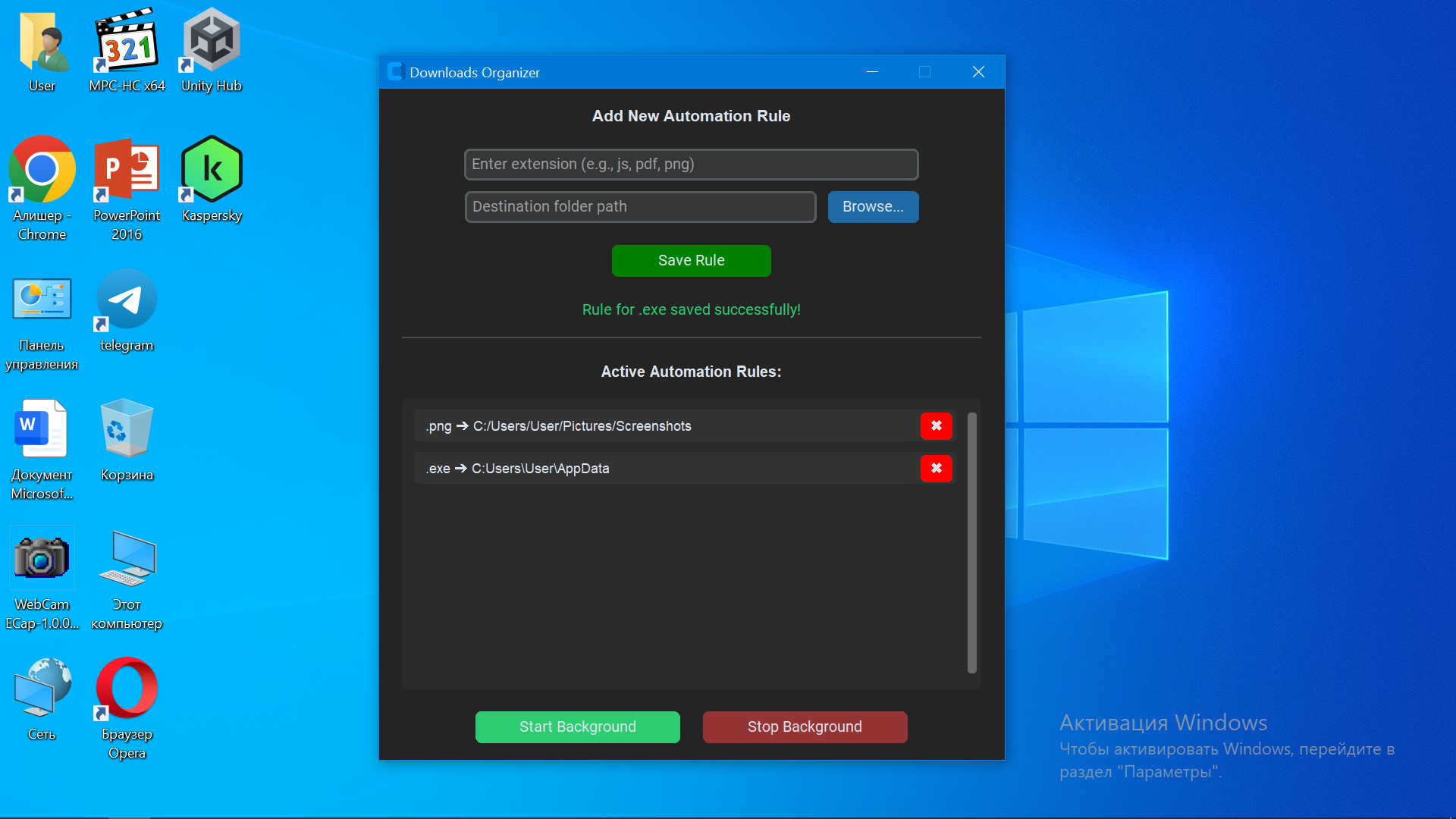
- Click Save Rule and enjoy a clean workspace!
Download
Install instructions
Download the File: Click the Download button on this page and save FileOrganizer.exe to your PC. Move FileOrganizer.exe out of your Downloads folder into a permanent location. Launch the App: Double-click FileOrganizer.exe. Windows SmartScreen Note: Windows might show a warning on the very first launch. Simply click More info then Run anyway. Add Your First Rule: In the top input field, enter the file extension you want to track (e.g., png, js, pdf, zip). Click the Browse... button and select the target folder where files of this type should go. Click the green Save Rule button. Instant Cleanup: The app instantly scans your Downloads folder, picks up all existing old files with that extension, and moves them to the target folder. Active rules will appear in the list at the bottom. If you want to delete a rule, just click the red X button next to it. Closing the Window: If you close the main setup window using the X button, the background sorter stays active. You can continue downloading files from any browser, and they will automatically route to their designated folders. Stop Background Button: If you want to completely turn off the automatic sorting, open the app interface and click the red Stop Background button. Start Background Button: If you want to resume automation after stopping it, simply open the app and click the green Start Background button.
Development log
- new tool21 hours ago
Leave a comment
Log in with itch.io to leave a comment.